

playit.gg Setup for a Game Server (Step by Step, CGNAT Friendly)
Set up a playit.gg tunnel for a home game server: install the agent, claim it, add a TCP or UDP tunnel, share the address, and fix the common problems.
Updated Oct 7, 2026 · 6 min read
On this page
To use playit.gg for a game server, install the playit agent on the PC running the server, open the claim link it shows to link it to your playit account, then in the dashboard go to Tunnels, Add Tunnel, choose the tunnel type (Minecraft Java, Minecraft Bedrock, TCP, UDP or TCP+UDP), enter the server's local port and create it. Players join the address and port playit gives you. It works behind CGNAT, double NAT and locked routers because the agent only makes outgoing connections.
How playit.gg works
The playit agent runs next to your server and keeps an outgoing connection open to playit's network. playit gives you a public address on its own servers. When a friend connects to that address, playit sends the traffic down the agent's connection to your server's local port.
Your router never has to accept an incoming connection, so CGNAT, double NAT, dorm networks and ISP gateways without port forwarding stop mattering. Your home IP is not shown to players, which is a nice side effect.
Step 1: install the agent
Windows:
- Download the Windows installer from playit.gg's download page.
- Run it. The agent starts and opens a window (or a browser tab) with a claim link.
Linux (Debian, Ubuntu, Raspberry Pi OS):
playit provides an apt repository. Follow the commands on its Linux download page to add the repository, then:
sudo apt update
sudo apt install playit
playit
On first run the agent prints a claim URL in the terminal. There are also Docker images if your server already runs in a container.
Step 2: claim the agent
- Open the claim link in a browser.
- Sign in or create a playit account.
- Approve the agent. It now shows as online in your dashboard.
After claiming, the agent runs in the background. On Linux, enable the service so it starts on boot (sudo systemctl enable --now playit if your package installed a service).
Step 3: add a tunnel
- In the dashboard, open Tunnels, then Add Tunnel.
- Choose the tunnel type:
- Minecraft Java for Java servers (TCP 25565 by default).
- Minecraft Bedrock for Bedrock servers and Geyser (UDP 19132).
- UDP, TCP or TCP+UDP for everything else.
- Set the local port to the port your server listens on, and the number of ports if the game uses a range.
- Local address stays
127.0.0.1when the agent and the server run on the same PC. Change it to the server's LAN IP if the agent is on another machine. - Click Add Tunnel.
Example settings:
| Game | Tunnel type | Local port |
|---|---|---|
| Minecraft: Java Edition | Minecraft Java | 25565 |
| Minecraft: Bedrock Edition | Minecraft Bedrock | 19132 |
| Terraria | TCP | 7777 |
| Valheim | UDP | 2456 (2 ports) |
| Palworld | UDP | 8211 |
Step 4: share the address
The tunnel page shows the public address.
- Minecraft Java tunnels get a hostname that works without a port, because playit publishes an SRV record. Friends paste it into Add Server as is.
- Other tunnels get a hostname and an external port that is usually different from your local port, for example
something.ply.gg:41234. Players must type both. Games that only accept their default port, or only connect through a server browser, can be awkward here.
You can also see the numeric IP for games that do not accept hostnames.
The free tier and the paid tier
Free tunnels use global anycast routing, which means a player connects to whichever playit location their network routes them to. Usually that is close by, but playit itself notes it can sometimes route people through a far away data center, which adds latency. The free tier also limits how many ports you can allocate.
playit Premium adds regional tunnels, where you pick the region players connect through, plus more ports and custom domains. If your group is in one region and ping matters, regional tunnels are the main reason to upgrade. Check playit's own pages for current plans and limits.
Common problems
"Agent offline" in the dashboard. The agent is not running, or a firewall or antivirus blocks its outgoing connection. Start it again and allow it through.
Tunnel works for Minecraft but not for a Steam game. Check the tunnel type is UDP, the port count covers the whole range the game uses, and players are typing the external port. Steam's server browser and Steam friend joins may not see a server through a tunnel; direct connect by address is the reliable path.
Everyone shows the same IP in the server logs. Players reach your server through playit, so the server sees playit's address instead of each player's. IP bans and per IP limits in the game stop working properly. For Minecraft Java, playit supports the PROXY protocol, which together with a plugin or Velocity/BungeeCord config passes real IPs through. Use name or account based bans otherwise.
High ping for some players. Global anycast sent them to a distant location. Regional tunnels on Premium fix this; otherwise there is not much to do.
Server lags only through the tunnel. Test with a friend on your LAN. If LAN is smooth, the extra hop or a busy relay is the cause. If LAN also lags, the server itself is the problem; see why is my game server lagging.
Security notes
- Anyone with the tunnel address can try to join. Use the game's password, whitelist or allow list. See how to set a password on a game server.
- Do not tunnel admin ports like RCON or a web console unless you need them remotely, and protect them with strong passwords.
- Your home IP stays hidden from players, which reduces the DDoS risk compared with port forwarding.
playit.gg vs other options
| Option | Friends install anything | Works behind CGNAT | Extra latency |
|---|---|---|---|
| Port forwarding | No | No | None |
| playit.gg tunnel | No | Yes | A relay hop |
| Tailscale / ZeroTier | Yes, every player | Usually | None when direct |
| Hosted server | No | Not relevant | None |
More about the virtual LAN route in Tailscale for game servers.
When a tunnel is not enough
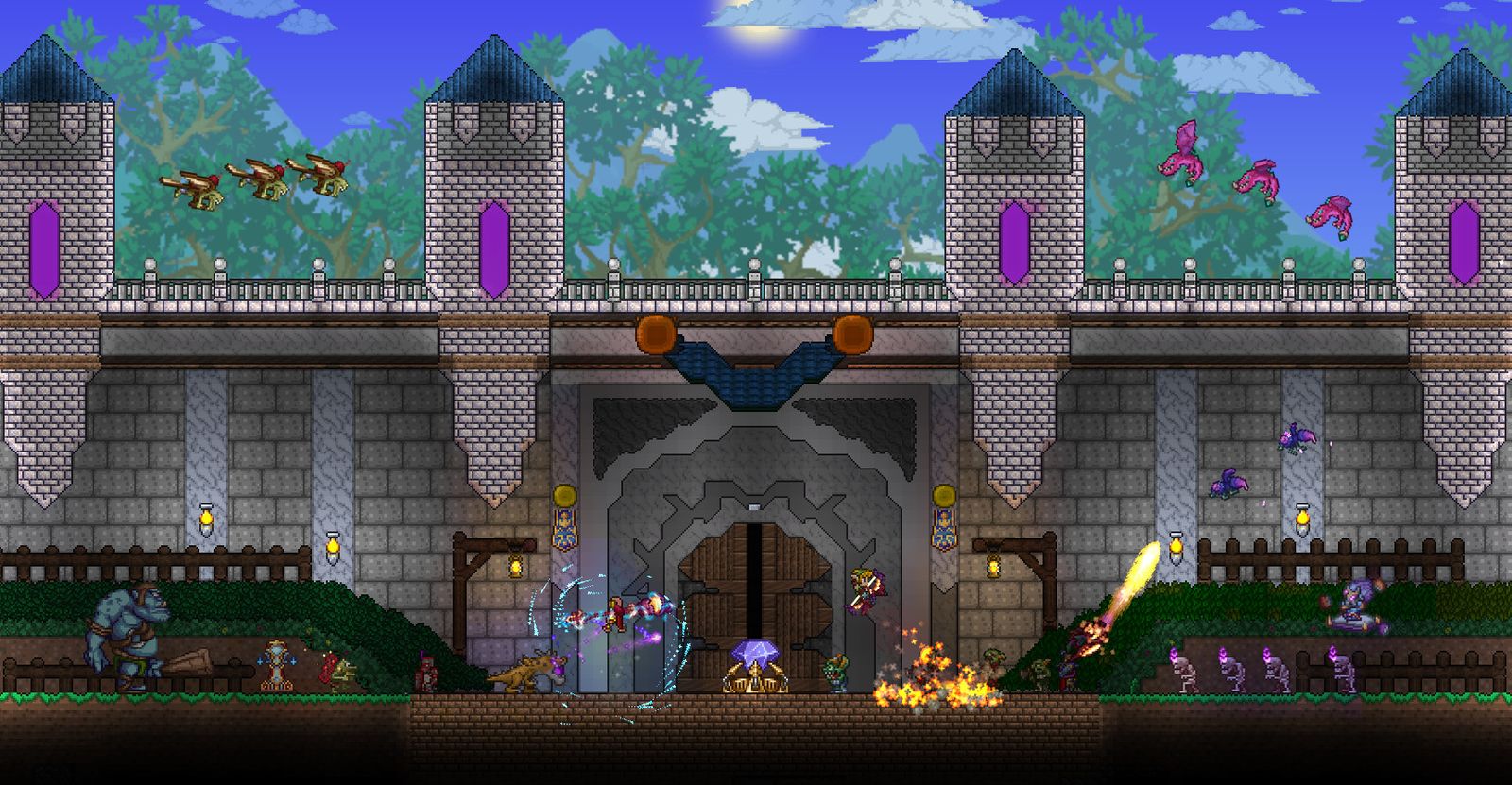
playit.gg is a great fix for CGNAT, but your PC still has to stay on and your upload still carries every player. A GamezServers server has a direct public address with no relay, open ports and DDoS protection, and keeps running when your PC is off. It is live about a minute after checkout for most games. See Minecraft hosting or Terraria hosting.
FAQ
Is playit.gg free?
Yes, there is a free tier with a limited number of ports and global routing. A paid Premium tier adds regional tunnels, more ports and custom domains.
Does playit.gg work with UDP games?
Yes. Choose a UDP or TCP+UDP tunnel. That is what makes it suitable for Valheim, Palworld, Rust and other UDP servers.
Does playit.gg hide my IP?
Players connect to playit's address, not yours, so your home IP is not exposed to them.
Do my friends need to install playit?
No. Only the PC running the server needs the agent. Friends connect to the tunnel address like any server.
Want a server without the setup?
From75¢
Pick a game, pay, play. Live the moment checkout finishes.
 Mount & Blade II: Bannerlord
 BATTALION: Legacy
 The Battle for Wesnoth