

 Tower Unite
How to Move Your Tower Unite Condo to a Dedicated Server
Move a Tower Unite condo to a dedicated server: Export Condo to .map, upload it as Tower/Condos/C_Condo/C_Condo.map, and fix load errors.
Updated Oct 7, 2026 · 5 min read
On this page
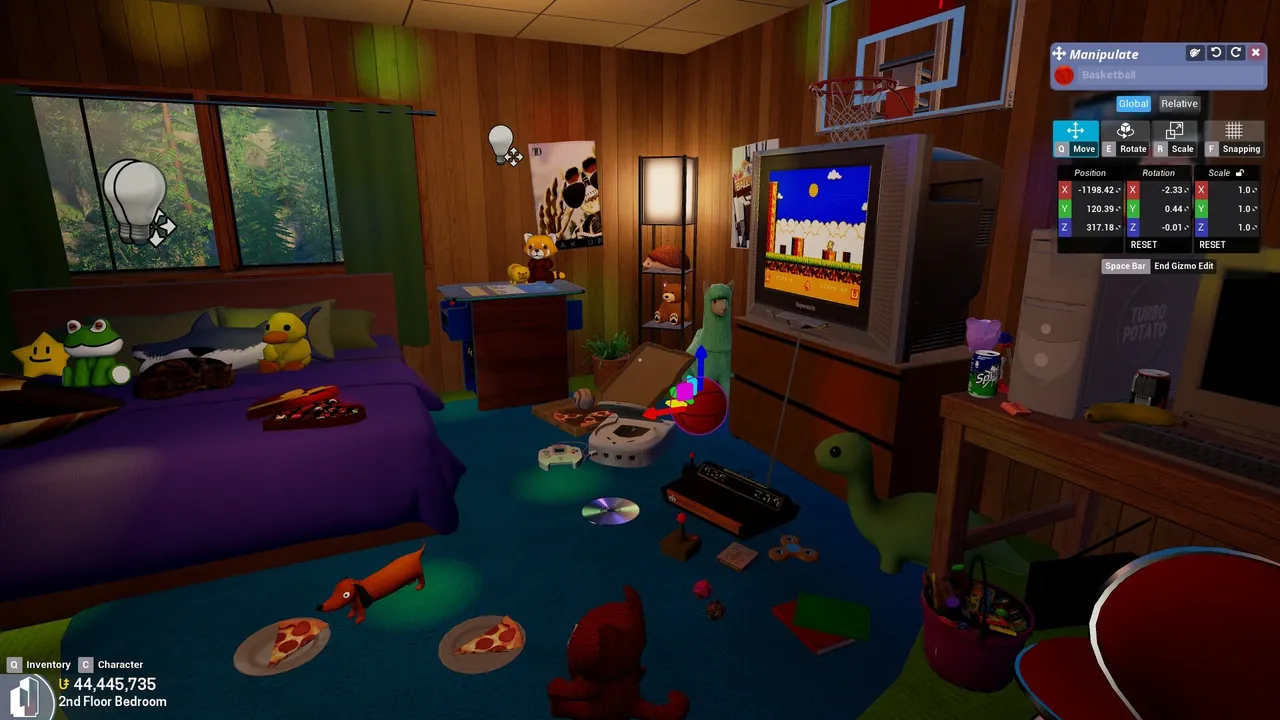
To move your Tower Unite condo to a dedicated server, export it in game from the condo scoreboard under Saves, then Export Condo, which writes a .map file to your Tower Unite/Workshop/Condo Exports/ folder. Upload that file to the server as Tower/Condos/<map>/<map>.map, for example Tower/Condos/C_Condo/C_Condo.map, where both names match the condo map the server loads. Restart, and the dedicated condo opens with your build. If the log says FAILED TO LOAD CONDO DATA, a folder or file name does not match the map.
What you can move
| Moves | Does not move |
|---|---|
| Everything placed in the condo: furniture, decorations, lights, canvases, Condo I/O setups | Your personal inventory (guests always bring their own) |
| The condo's layout on that map | Your build on a different condo map, unless you export that one too |
| Workshop items placed in the condo, as long as players have them | Workshop collision, which PixelTail notes does not work on dedicated condos yet |
One export is one condo on one map. If you have builds on several condo maps, export and upload each one into its own folder.
Step 1: Export the condo from the game
- Load into your condo in Tower Unite.
- Open the condo scoreboard.
- Go to Saves, then Export Condo.
The game writes the condo as a .map file into:
...\steamapps\common\Tower Unite\Workshop\Condo Exports\
(the Workshop folder inside your Tower Unite install). The official guide also mentions a manual route: take a CondoData file from your Steam Cloud folder for Tower Unite and rename it to end in .map. The export button is simpler and less error prone.
Step 2: Work out the target name
The dedicated condo loads condo data from a folder named after its map, and by default a file with the same name:
| Condo map | Map file name | Upload your export as |
|---|---|---|
| Condo | C_Condo |
Tower/Condos/C_Condo/C_Condo.map |
| House | C_House |
Tower/Condos/C_House/C_House.map |
| Smooth Dirt | C_SmoothDirt |
Tower/Condos/C_SmoothDirt/C_SmoothDirt.map |
| Suite | C_lobbyOne |
Tower/Condos/C_lobbyOne/C_lobbyOne.map |
| Resort | C_Lobby1 |
Tower/Condos/C_Lobby1/C_Lobby1.map |
| Smooth Autumn | C_SmoothAutumn |
Tower/Condos/C_SmoothAutumn/C_SmoothAutumn.map |
| Underwater | C_Underwater |
Tower/Condos/C_Underwater/C_Underwater.map |
| Highrise | C_Highrise |
Tower/Condos/C_Highrise/C_Highrise.map |
| Art Studio | C_Studio |
Tower/Condos/C_Studio/C_Studio.map |
| Theatre | C_Theatre |
Tower/Condos/C_Theatre/C_Theatre.map |
| Courtyard | C_Courtyard |
Tower/Condos/C_Courtyard/C_Courtyard.map |
| Ice Moon | C_IcePlanet |
Tower/Condos/C_IcePlanet/C_IcePlanet.map |
Use the row for the condo map your build was made on. A build exported from Highrise only makes sense loaded into Highrise.
Names are case sensitive on Linux servers. c_condo.map is not C_Condo.map, and C_lobbyOne really has a lower case l.
Step 3: Upload it
- Stop the server. If it is running when you upload, it can autosave its own copy over yours.
- Back up the server's existing
Tower/Condosfolder, in case you want the old condo back. - Create the folder if it is missing, for example
Tower/Condos/C_Condo/. - Upload your export and rename it to
C_Condo.map(or the name from the table), replacing any file already there.
Step 4: Point the server at the right map
The server must load the same map the file is for. On the command line that is the first argument:
./Tower/Binaries/Linux/TowerServer-Linux-Shipping /Game/Maps/C_Studio -log -Port=7777 -QueryPort=27016 -nosteamclient
On Windows, pick the map in TowerServerGUI.exe, which also has a condo importer that does steps 3 and 4 for you.
Step 5: Keep your file name (optional)
If you would rather keep the export's own name, set CondoFile in TowerServer.ini under [DedicatedCondoOptions], without the extension:
[DedicatedCondoOptions]
CondoAutoSave=True
CondoBackupsEnabled=True
CondoFile=MyAwesomeCondo
The file still has to sit in that map's folder. On Smooth Dirt, that loads Tower/Condos/C_SmoothDirt/MyAwesomeCondo.map. This is handy for keeping several versions of a build side by side and switching between them.
Step 6: Start and check
Start the server and watch the log. If the condo loads, join and walk through it. Leave CondoAutoSave=True on so changes made on the server are kept, and CondoBackupsEnabled=True so every save makes a backup you can roll back to.
When it goes wrong
| Symptom | Cause | Fix |
|---|---|---|
FAILED TO LOAD CONDO DATA in the log |
Folder or file name does not match the map | Check the table above, including capitals |
| Condo loads empty, no error | Server loaded a different map than the file is for | Match the map argument or panel setting to the folder |
| Your upload vanished after a restart | Uploaded while the server was running and it saved over it | Stop first, upload, then start |
| Workshop items missing for guests | Guests do not have those Workshop items | They subscribe to the items, or replace them with stock items |
| Guests walk through Workshop items | Workshop collision does not work on dedicated condos yet | Place blocking volumes around them |
Moving it to GamezServers
On a GamezServers Tower Unite server, stop the server in the panel, upload your .map into Tower/Condos/<map>/ with the file manager or SFTP, and choose the same condo map with the Game Map setting. Take a one click backup before you replace anything. Turn Auto Save on so the server keeps every change your guests make, and the condo stays open without your PC. For the server setup itself, see how to host a Tower Unite dedicated condo. If it does not appear on the condo list afterwards, see Tower Unite dedicated condo not showing on the condo list.
FAQ
Where does Tower Unite export condos to?
To Tower Unite/Workshop/Condo Exports/ inside the game's install folder, as a .map file, when you use Saves, then Export Condo on the condo scoreboard.
What should the condo file be called on the dedicated server?
The same as the condo map, in a folder of the same name: Tower/Condos/C_Condo/C_Condo.map for the standard Condo. Use CondoFile in TowerServer.ini to load another name from that folder.
Why does my dedicated condo say FAILED TO LOAD CONDO DATA?
The folder or .map name does not match the condo map being loaded. Fix the names, including capital letters, and restart.
Does moving my condo move my inventory?
No. Only the condo and what is placed in it moves. Every guest, you included, uses their own inventory on a dedicated condo.
Skip the setup. Your own Tower Unite server.
Then $9.99/mo. Just trying it? $2.50 for 3 days
 Minecraft