

Upload Files to Your Server with FileZilla (FTP and SFTP)
Move worlds, mods and modpacks onto your game server with FileZilla, a free app. Get your login, connect with Quickconnect and drag your files across.
Updated Oct 18, 2026 · 3 min read
On this page
The Files tab in your control panel is great for config files and small mods. For anything big, like a world, a modpack or a folder full of mods, use FileZilla. It is free, has no size limit, uploads many files at once and carries on where it stopped if your connection drops. Setting it up takes about five minutes the first time.
1. Download FileZilla
Get FileZilla Client from the official site: filezilla-project.org. It runs on Windows, macOS and Linux. You want the Client, not FileZilla Server or FileZilla Pro.
The Windows installer can offer extra software while it installs. Click Decline on those screens. For an installer without any offers, click Show additional download options on the download page and pick the Windows 64bit installer from the list.
2. Get your FTP login
In your dashboard, open your server, go to Settings and find FTP access. Click Show FTP login and you get four things:
- Host: ftp.gamezservers.com
- Username: your own, it ends with your server's code, like steve.1a2b3c4d
- Password: a new one, made the moment you click
- Port: 21
Each time you click Show FTP login, a new password is set and the old one stops working. Only the server's owner can show the login. Friends who split the bill can ask the owner for it.
3. Connect with Quickconnect
Open FileZilla. Across the top is the Quickconnect bar. Paste the host, username and password into their boxes, type 21 for the port and click Quickconnect.
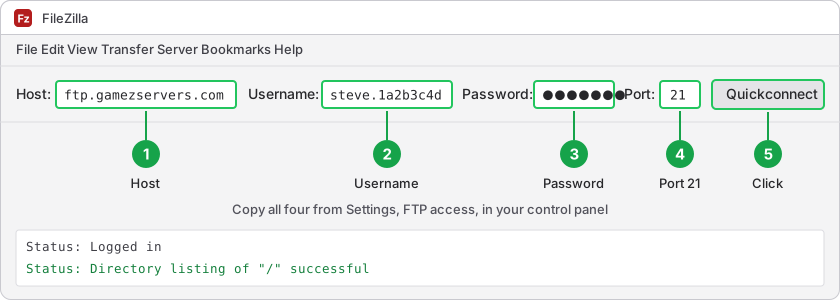
After a second or two the log under the bar says Directory listing of "/" successful, and your server's files show on the right. If FileZilla shows a box about the server's certificate or an insecure connection, tick Always trust or Always allow and click OK. Next time, the arrow next to Quickconnect lists the servers you used before.
4. Drag your files across
FileZilla has two sides. The left is your computer, the right is your server. On the right, open the folder the files belong in, such as plugins or mods. On the left, find your files. Then drag them from the left onto the right.
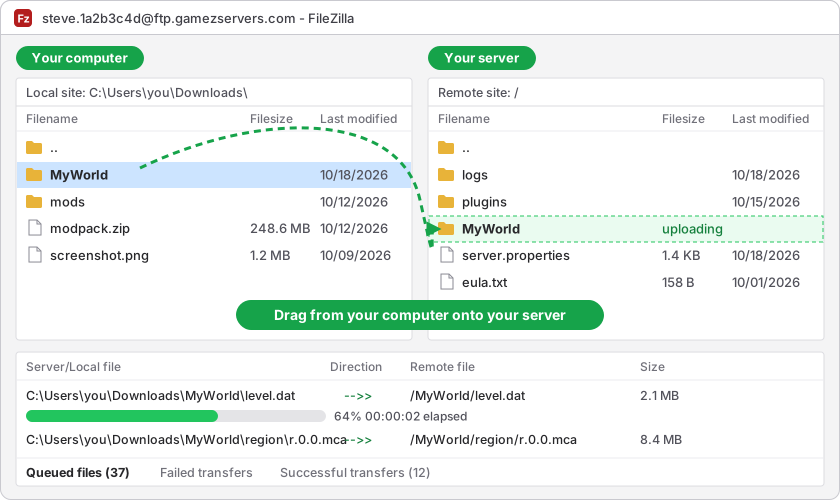
The bottom of the window shows each file as it goes, and Successful transfers counts what made it. Big uploads can take a while. Leave FileZilla open until the queue is empty.
To download, drag the other way, from right to left. That is also the quickest way to keep your own copy of your world.
Before you replace a world, Stop the server in your control panel. A running server saves its own world every few minutes and can write over the one you just uploaded. Press Start once the upload is done.
Using SFTP instead
SFTP is the same thing with every byte encrypted. Under the FTP login, your panel shows your server's SFTP host and port. In Quickconnect, type the host starting with sftp://, the same username and password, and that port. FileZilla, WinSCP and Cyberduck all work with it.
If it does not connect
- Wrong username or password: click Show FTP login again and paste the new password. Copy with the mouse to avoid a space at the start or end.
- Too many wrong passwords: after 10 wrong tries within 15 minutes, that login waits 15 minutes before it works again. Wait, then paste the newest password.
- Failed to retrieve directory listing: some networks, often at work or school, block plain FTP's file transfers. Connect with SFTP instead, it uses one connection that networks let through.
- Permission denied while uploading: the game has that file open. Stop the server, upload, then start it again.
Still stuck? Email support@gamezservers.com with what FileZilla's log says, and we will sort it out.
Want a server without the setup?
From75¢
Pick a game, pay, play. Live the moment checkout finishes.